fastai - Chapter 2 - From Model to Production [DRAFT]
A top-down approach of the chapter




The six lines of code we saw in the last chapter are just one small part of the process of using deep learning in practice. In this chapter, we're going to use a computer vision example to look at the end-to-end process of creating a deep learning application. More specifically, we're going to build a bear classifier! In the process, we'll discuss the capabilities and constraints of deep learning, explore how to create datasets, look at possible gotchas when using deep learning in practice, and more. Many of the key points will apply equally well to other deep learning problems, such as those in last chapter. If you work through a problem similar in key respects to our example problems, we expect you to get excellent results with little code, quickly.
We've seen that deep learning can solve a lot of challenging problems quickly and with little code. However, deep learning isn't magic! The same 6 lines of code won't work for every problem anyone can think of today.
We often talk to people who underestimate both the constraints and the capabilities of deep learning. Both of these can be problems: underestimating the capabilities means that you might not even try things that could be very beneficial, and underestimating the constraints might mean that you fail to consider and react to important issues.
The best thing to do is to keep an open mind. Then, it is possible to design a process where you can find the specific capabilities and constraints related to your particular problem as you work through the process. This doesn't mean making any risky bets — we will show you how you can gradually roll out models so that they don't create significant risks, and can even backtest them prior to putting them in production.
When selecting a project, the most important consideration is data availability. However, the goal is not to find the "perfect" dataset or project, but just to get started and iterate from there.
We also suggest that you iterate from end to end in your project; that is, don't spend months fine-tuning your model, or polishing the perfect GUI, or labelling the perfect dataset… Instead, complete every step as well as you can in a reasonable amount of time, all the way to the end. By completing the project end to end, you will see where the trickiest bits are, and which bits make the biggest difference to the final result.
As you work through this book, we suggest that you complete lots of small experiments, by running and adjusting the notebooks we provide, at the same time that you gradually develop your own projects. That way, you will be getting experience with all of the tools and techniques that we're explaining, as we discuss them.
By using the end-to-end iteration approach you will also get a better understanding of how much data you really need. Indeed, for instance, you may find you can only easily get 200 labeled data items.
In an organizational context you will be able to show your colleagues that your idea can really work by showing them a real working prototype. We have repeatedly observed that this is the secret to getting good organizational buy-in for a project.
Since it is easiest to get started on a project where you already have data available, that means it's probably easiest to get started on a project related to something you are already doing, because you already have data about things that you are doing. For instance, if you work in the music business, you may have access to many recordings.
Sometimes, you have to get a bit creative. Maybe you can find some previous machine learning project, such as a Kaggle competition, that is related to your field of interest.
Sometimes, you have to compromise. Maybe you can't find the exact data you need for the precise project you have in mind; but you might be able to find something from a similar domain, or measured in a different way, tackling a slightly different problem.
Especially when you are just starting out with deep learning, it's not a good idea apply deep learning where it has not been before. That's because if your model does not work at first, you will not know whether it is because you have made a mistake, or if the very problem you are trying to solve is simply not solvable with deep learning. Let's have a look at the state of deep learning, just so you know what kinds of things deep learning is good at right now.
The project we'll be completing in this chapter is a bear detector. It will discriminate between three types of bear: grizzly, black, and teddy bears. You can follow along with this chapter and create your own image recognition application for whatever kinds of objects you're interested in. In the fast.ai course, thousands of students have presented their work in the course forums, displaying everything from hummingbird varieties in Trinidad to bus types in Panama—one student even created an application that would help his fiancée recognize his 16 cousins during Christmas vacation!
For many types of projects, you may be able to find all the data you need online. At the time of writing, the Google image downloader from this repository is probably the best option for finding and downloading images.
Here is the code to download our images:
%pip install simple_image_download
from simple_image_download import simple_image_download as simp


image_downloader = simp.simple_image_download()
bear_types = ['grizzly bear', 'black bear', 'teddy bear']

for bear_type in bear_types:
    image_downloader.download(keywords=bear_type, limit=150)

simple_images_path = Path('simple_images')
image_files = get_image_files(simple_images_path)
failed_images = verify_images(image_files)
failed_images.map(Path.unlink)
image_files
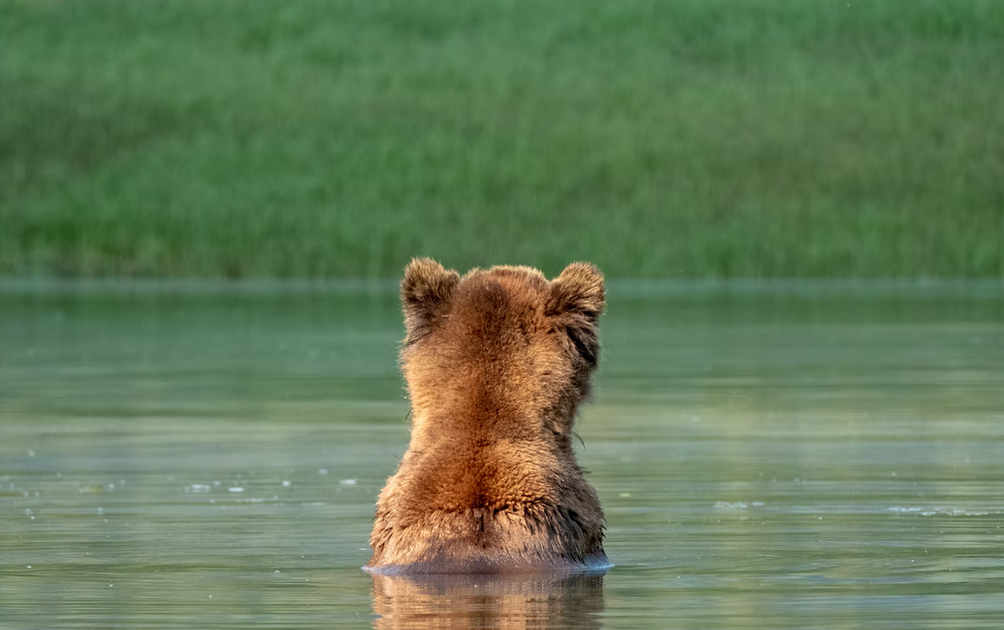
Our folder has image files, as we'd expect. Let's open one:
bear_img = Image.open(image_files[0])
bear_img
Let's break down this code.
%pip install simple_image_download
This line is used to download images with Google Image Search, it's the same thing as doing pip install simple_image_download in your terminal.
from simple_image_download import simple_image_download as simp
Here, we import the simple_image_download class as simp from the simple_image_download directory in order to use it to get the images from the web.
image_downloader = simp.simple_image_download()
bear_types = ['grizzly bear', 'black bear', 'teddy bear']

for bear_type in bear_types:
    image_downloader.download(keywords=bear_type, limit=150)
Finally, we iterate over the bear_types in order to download 150 images that will be stored in the simple_images folder. We actually do a Google search with your query and return the first results.
Here's all the parameter of the download method:
-
keywords: String to be searched. -
limit: Integer representing the numbers of files to download. -
extensions: Set containing the extensions of the files (optional, default is{".jpg", ".png", ".ico", ".gif", ".jpeg"}).
image_files = get_image_files(simple_images_path)
failed_images = verify_images(image_files)
failed_images.map(Path.unlink)
When we download files from the internet, there are a few that are corrupt. To remove all the failed images, you can use unlink on each of them. In this case, no files were corrupted. Note that, like most fastai functions that return a collection, verify_images returns an object of type L, which includes the map method. This calls the passed function on each element of the collection.
Jupyter notebooks are great for experimenting and immediately seeing the results of each function, but there is also a lot of functionality to help you figure out how to use different functions, or even directly look at their source code. Here are some other features that are very useful in Jupyter notebooks:
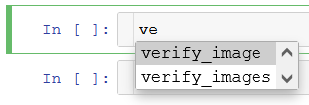
At any point, if you don't remember the exact spelling of a function or argument name, you can press Tab to get autocompletion suggestions.

When inside the parentheses of a function, pressing Shift and Tab simultaneously will display a window with the signature of the function and a short description. Pressing these keys twice will expand the documentation, and pressing them three times will open a full window with the same information at the bottom of your screen.
?verify_images
In a cell, typing ?function_name and executing will show the signature of the function and a short description.
??verify_images
In a cell, typing ??function_name and executing will show the signature of the function, a short description, and the source code.

If you are using the fastai library, we added a doc function for you: executing doc(function_name) in a cell will open a window with the signature of the function, a short description and links to the source code on GitHub and the full documentation of the function in the library docs.
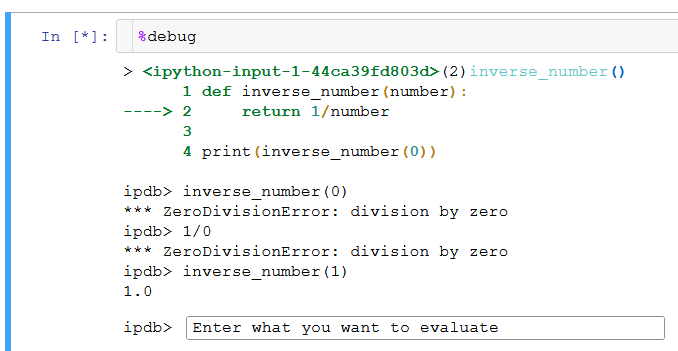
To get help at any point if you get an error, type %debug in the next cell and execute to open the Python debugger, which will let you inspect the content of every variable and test expressions.
One thing to be aware of in this process: as we discussed in the last chapter, models can only reflect the data used to train them. And the world is full of biased data, which ends up reflected in, for example, Bing Image Search. For instance, let's say you were interested in creating an app that could help users figure out whether they had healthy skin, so you trained a model on the results of searches for "healthy skin". Here's the kinds of results you would get:

With this as your training data, you would end up not with a healthy skin detector, but a young white woman touching her face detector! Be sure to think carefully about the types of data that you might expect to see in practice in your application, and check carefully to ensure that all these types are reflected in your model's source data.
Now that we have downloaded some data, we need to assemble it in a format suitable for model training. In fastai, that means creating an object called DataLoaders.
A DataLoaders is what we use to provides the data for your model. Here is what we need to create a DataLoaders for the dataset that we just downloaded :
bears = DataBlock(
    blocks=(ImageBlock, CategoryBlock),
    get_items=get_image_files,
    splitter=RandomSplitter(valid_pct=0.2, seed=42),
    get_y=parent_label,
    item_tfms=Resize(128))

dls = bears.dataloaders(path)
The Datablock that we have just created is like a blueprint for creating a DataLoaders. This blueprint has to give to the Dataloaders at least four things:
- What kinds of data we are working with (
blocks) - How to get the list of items (
get_items) - How to create the validation set (
splitter) - How to label these items (
get_y)
Let's look at each of these arguments in turn.
blocks=(ImageBlock, CategoryBlock)
blocks specify what types of data we are working with. Usually you will specify at least two blocks: one that represents your independent (input) variable, and one that represents your dependent (target) variable. In this case, our independent variables are images, and our dependent variables are the categories (type of bear) for each image.
get_items=get_image_files
get_items uses a function to tell fastai how to pickup the data. The get_image_files function takes a path, and returns a list of all of the images in that path.
splitter=RandomSplitter(valid_pct=0.2, seed=42)
splitter is used to tell how to split up the data in a training and validation set. RandomSplitter(valid_pct=0.2, seed=42) is a predefined class that split the data into a validation set and a training set. valid_pct determines the percentage of data held in the validation set, in this case 20% since valid_pc=0.2, and seed is only added to obtain the same training/validation split each time we run this notebook. Indeed computers don't really know how to create random numbers at all, but simply create lists of numbers that look random; if you provide the same starting point for that list each time—called the seed—then you will get the exact same list each time
get_y=parent_label
get_y tells fastai how to extract the y variable from the data. In fact, the independent variable is often referred to as x and the dependent variable, as y. Also, parent_label is a function provided by fastai that gets the name of the folder a file is in. We can use this function because we put each of our bear images into folders based on the type of bear.
item_tfms=Resize(128)
item_tfms is an optional argument that we can include to specify any additional processing ran on each individual item, whether it be an image, category, or so forth. We use Resize(128) which resizes all images to 128x128, because our images are all different sizes, and this is a problem for deep learning: we don't feed the model one image at a time but several of them (what we call a mini-batch). To group them in a big array (usually called a tensor) that is going to go through our model, they all need to be of the same size.
dls = bears.dataloaders(path)
As we said earlier, the Datablock that we have just created is like a blueprint for creating a DataLoaders. However, we still need to tell fastai the actual source of our data—in this case, the path where the images can be found.
Besides, a DataLoaders includes validation DataLoader (note the singular) and training DataLoader. Indeed, DataLoader is a class that provides batches of a few items at a time to the GPU. We'll be learning a lot more about this class in the next chapter. When you loop through a DataLoader, fastai will give you 64 (by default) items at a time, all stacked up into a single tensor. We can take a look at a few of those items by calling the show_batch method on a DataLoader:
dls.valid.show_batch(max_n=4, nrows=1)

By default Resize crops the images to fit a square shape of the size requested, using the full width or height. This can result in losing some important details. Alternatively, you can ask fastai to squish/stretch the images or to pad them with zeros (black):
bears = bears.new(item_tfms=Resize(128, ResizeMethod.Squish))
dls = bears.dataloaders(path)
dls.valid.show_batch(max_n=4, nrows=1)

bears = bears.new(item_tfms=Resize(128, ResizeMethod.Pad, pad_mode="zeros"))
dls = bears.dataloaders(path)
dls.valid.show_batch(max_n=4, nrows=1)

All of these approaches seem somewhat wasteful, or problematic:
- If we crop the images then we remove some of the features that allow us to perform recognition. For instance, if we were trying to recognize breeds of dog or cat, we might end up cropping out a key part of the body or the face necessary to distinguish between similar breeds.
- If we squish or stretch the images they end up as unrealistic shapes, leading to a model that learns that things look different to how they actually are, which we would expect to result in lower accuracy.
- If we pad the images then we have a whole lot of empty space, which is just wasted computation for our model and results in a lower effective resolution for the part of the image we actually use.
Instead, what we normally do in practice is to randomly select part of the image, and crop to just that part. On each epoch (which is one complete pass through all of our images in the dataset) we randomly select a different part of each image. This means that our model can learn to focus on, and recognize, different features in our images. It also reflects how images work in the real world: different photos of the same thing may be framed in slightly different ways.
In fact, an entirely untrained neural network knows nothing whatsoever about how images behave. It doesn't even recognize that when an object is rotated by one degree, it still is a picture of the same thing! So actually training the neural network with examples of images where the objects are in slightly different places and slightly different sizes helps it to understand the basic concept of what an object is, and how it can be represented in an image.
bears = bears.new(item_tfms=RandomResizedCrop(128, min_scale=0.3))
dls = bears.dataloaders(path)
dls.train.show_batch(max_n=4, nrows=1, unique=True)

This is another example where we replace Resize with RandomResizedCrop, which is the transform that provides the behavior we just described. The most important parameter to pass in is min_scale, which determines how much of the image to select at minimum each time. Also, we used unique=True to have the same image repeated with different versions of this RandomResizedCrop transform.
Data augmentation refers to creating random variations of our input data, such that they appear different, but do not actually change the meaning of the data. Examples of common data augmentation techniques for images are rotation, flipping, perspective warping, brightness changes and contrast changes :
bears = bears.new(item_tfms=Resize(128), batch_tfms=aug_transforms(mult=2))
dls = bears.dataloaders(path)
dls.train.show_batch(max_n=8, nrows=2, unique=True)

batch_tfms tells fastai we want to use these transforms on a batch. aug_transforms's function provides a standard set of augmentations that we have found work pretty well for natural photo images such as the ones we are using here. Also, we are able to use batch_tfms, because our images are now all the same size, we can apply these augmentations to an entire batch of them using the GPU, which will save a lot of time (note that we're not using RandomResizedCrop in this example, so you can see the differences more clearly; we're also using double the amount of augmentation compared to the default, for the same reason).
Bibliography
This post is based on Deep Learning for Coders [1]. From Data to Dataloaders is also based on this article [2].
- [1]J. Howard and S. Gugger, Deep Learning for Coders with Fastai and Pytorch: AI Applications Without a PhD. O’Reilly Media, Incorporated, 2020.
- [2]A. Muttoni, “Understanding datablocks and DataLoaders in fast.ai,” GitHub repository. GitHub, Dec. 2020, [Online]. Available at: https://github.com/muttoni/blog.